How to accurately extract specific answers from complex PDF documents using AI
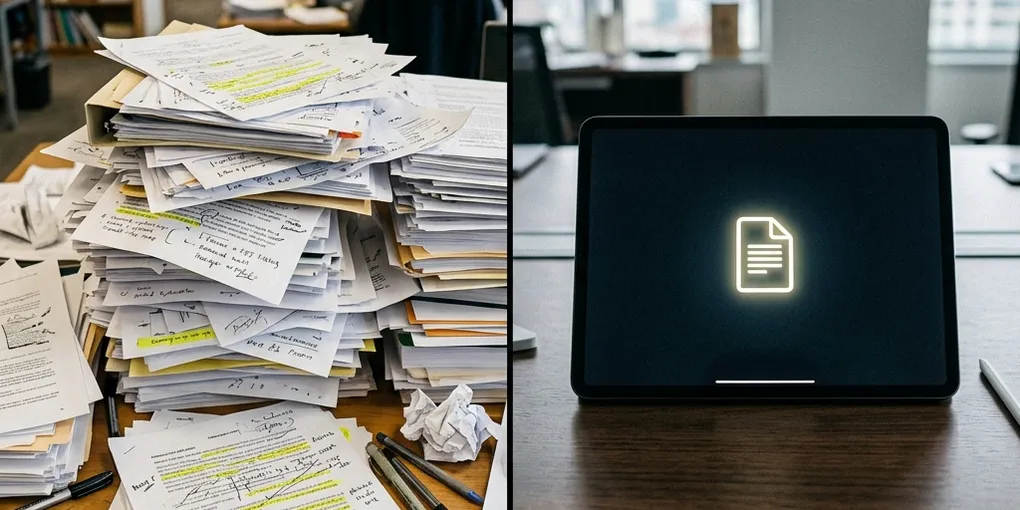
You've just received an email with a 60-page PDF attachment. It might be a new company expense policy, a dense API integration manual for B2B software, or an incredibly tedious commercial lease agreement. You don't want to read it. You only need to know one specific thing: "Does this policy cover the cost of buying a second monitor for remote work?"
Normally, how do you handle this? You open the PDF, press Ctrl+F, and search for the word "monitor" or "remote." If you are lucky, the exact phrase pops up immediately. But more often than not, you find yourself jumping back and forth between 15 disjointed paragraphs, trying to piece together the context. Sometimes, the document uses a totally different term—like "work-from-home hardware stipend"—and your keyword search yields zero results, forcing you to skim the entire document manually.
This exhausting, time-consuming task is exactly what Artificial Intelligence was built to solve. Similar to how you can extract actionable summaries from hours of YouTube videos, you can treat a long, complex PDF as your own personal database. However, there is a massive catch. If you simply upload the file to ChatGPT and ask a lazy question, you risk falling victim to AI hallucinations—plausible-sounding lies that could lead to catastrophic mistakes.
1. Deep Dive: Why traditional PDF searching fails
The limitation of Keyword Search (Ctrl+F)
Our trusty Ctrl+F only works when there is an exact string match. If you are searching for "penalty fee" but the contract uses the term "early termination liquidated damages," you will find nothing. Standard search tools lack semantic understanding; they don't understand the context or the meaning behind your query.
The disaster of Lazy AI Prompting (Hallucinations)
To avoid manual reading, many professionals now upload their PDFs to ChatGPT or Claude and ask something simple like, "Find the penalty clause in this document."
The Danger of Blind Trust: AI as a Novelist
At their core, Large Language Models are predictive text engines—they predict the next plausible word. If you give an AI a loose prompt like "Find the penalty," and the document doesn't actually contain a penalty clause, the AI might dip into its general training data. It will "invent" a completely fake penalty clause that looks incredibly professional and realistic. If you rely on this hallucinated information to negotiate a contract or email a client, the real-world consequences could be devastating.
If an AI hallucinates a summary of a podcast, you waste a few minutes. If an AI hallucinates a legal clause, you face financial or reputational ruin. Therefore, when querying PDFs, speed is secondary. Absolute accuracy and source verification are your top priorities.
2. Step-by-Step Workflow for Accurate PDF Analysis
So, how do we force the AI to stop acting like a creative novelist and start acting like a strict, literal researcher? Follow this 3-step mechanical workflow.
Step 1: Choose the Right Tool
As of 2026, the absolute best tool for processing long documents is Anthropic's Claude series (specifically Claude 3.5 Sonnet or Opus). Claude features a massive context window (it can remember hundreds of pages at once) and is significantly less prone to hallucinating outside knowledge compared to its competitors. Note: If your PDF contains highly sensitive corporate data, ensure you are using an Enterprise tier with zero data-retention policies, or mask the sensitive data before uploading.
Step 2: The Retrieval-First Prompt Architecture
Once you upload the file, you must explicitly build a "fence" around the AI. You must forbid it from using its pre-trained outside knowledge.
| Prompt Type | Example | AI Behavior & Risk |
|---|---|---|
| The Lazy Prompt (Bad) | "What does this document say about refunds?" | The AI mixes the document's text with its general training data. High risk of hallucination. |
| The Strict Prompt (Good) | "Based ONLY on the uploaded document, explain the refund policy. If the document does not mention it, reply 'Not found'." | The AI acts as a strict search engine. It refuses to answer if the exact information isn't in the PDF. |
Step 3: Force the "Quote and Explain" Method
To guarantee the AI isn't lying to you, you must force it to show its work. Instruct the AI to always copy and paste the exact, verbatim quote from the text first, and then provide a plain-English explanation beneath it.
// Example Interaction Log:
User: Based strictly on the uploaded lease agreement, what is the penalty for breaking the lease early? Provide exact quotes from the text, followed by a plain English explanation.

AI:
[Exact Quote]: "Section 4.b: Early termination of this agreement by the Lessee shall incur a penalty fee equivalent to two (2) months of the current Base Rent, payable within 14 days of notice."

[Explanation]: If you cancel the lease early, you must pay an amount equal to two months of your rent. You have 14 days to pay this fee after notifying the landlord.
Notice how the exact quote serves as an anchor. Now, you can quickly search for "Section 4.b" in the original PDF to verify that the sentence actually exists. Once you've fact-checked the source, you can confidently rely on the plain-English explanation.
3. Edge Cases and Troubleshooting
In the real world, not all PDFs are perfectly formatted text files. Here is how to handle common edge cases.
Q. What if the PDF is a scanned image and the AI can't read the text?
If you upload a scanned piece of paper or a flattened image PDF, AI tools might fail to extract the text accurately. In this case, you need OCR (Optical Character Recognition). Before uploading to Claude or ChatGPT, run the file through a free tool like ILovePDF or Adobe Acrobat to "Recognize Text." Once the text is selectable, the AI can read it perfectly.
Q. What if the PDF is a 500-page manual and the AI says it's too long?
Every AI has a Token Limit (a memory limit). If you dump a massive 500-page book into the prompt, the AI might suffer from the "Lost in the Middle" phenomenon, where it forgets details located in the center of the document. If you know you only need information about "Installation," use a PDF splitter tool to extract just that 30-page chapter, and upload only that specific section. Smaller, focused contexts yield much higher accuracy.
4. The Copy-Paste Prompt Template
The Bulletproof PDF Prompt
Next time you need to extract answers from a dense document, paste this exact framework:
"I have uploaded a document. You are a meticulous research analyst. Please answer the following question: [Insert Your Question Here]
Rule 1: Base your answer STRICTLY on the text in the provided document. Do not use any outside knowledge.
Rule 2: Provide the exact, verbatim quote(s) from the document that answers the question first. Include the page number or section header if visible. Then, provide a plain-English summary below the quote.
Rule 3: If the exact answer is not contained in the document, DO NOT guess or infer. Simply reply with 'I cannot find the answer in the provided text'."
Conclusion: Freedom from manual searching
By trapping the AI within this rigid framework of rules, you transform it from a creative storyteller into a tireless, hyper-accurate data analyst. Open that unread PDF sitting on your desktop right now, drop it into Claude, and test the prompt above. You will never go back to blindly hitting Ctrl+F again. Experience the paradigm shift in how you process information.